
Why do you keep explaining the same things to AI?
Set up standing instructions and reference material for recurring work. Quick paths to ChatGPT and Claude Projects, Gemini Gems, and Copilot Notebooks.
Every month, you prepare a similar report. You tell the AI again who you are writing for, what tone you want, and what the data means. Then you attach a sample of last month's report again.
For this kind of work, it makes sense to set up a dedicated space for instructions and reference material. ChatGPT and Claude call these Projects.[1][2] In Gemini, you can create a Gem for a recurring task, while Microsoft offers Copilot Notebooks.[3][4]
What to prepare once
Take a project called “Monthly reports”. Add a checked sample report and a short description of its intended audience. Your standing instructions could say:
Help me prepare a monthly report for management. Write in Slovenian, keeping it brief and factual. Use the sections: results, deviations, and next steps. Do not guess missing figures; tell me what is missing. Use the sample for its format, not as a source of current data.
For each new report, add the data for the right month and your specific request. You do not need to rewrite the standing instructions every time.
Where to find these features
The following paths apply to the web versions. Button names are in English so they are easy to recognize.
ChatGPT: Projects
At chatgpt.com, select New project in the left sidebar and give your project a name. Add reference files, then enter your instructions through ••• → Project settings. Start new conversations inside that project.[1]
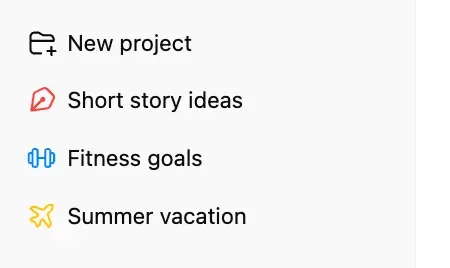
Source: OpenAI.
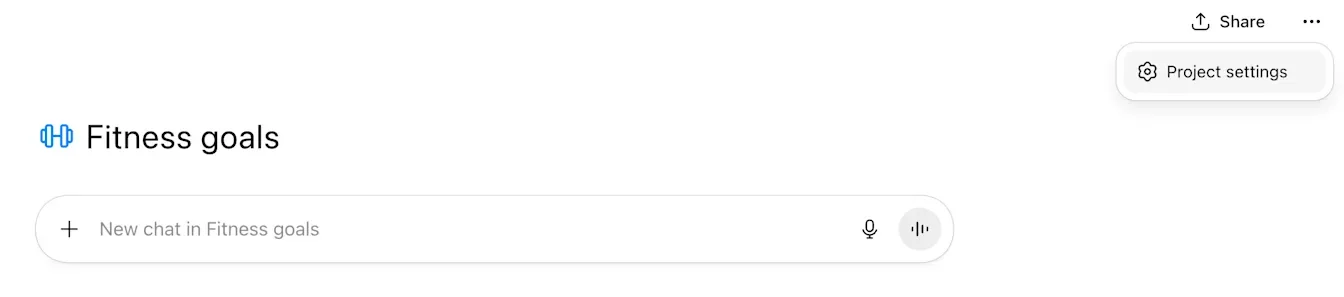
Source: OpenAI.
Claude: Projects
Open claude.ai/projects and click + New Project. Add material to Project knowledge and enter instructions under Set project instructions. Then start a conversation in the project. Its instructions and reference material are available to conversations within it.[2]
Gemini: Gems
At gemini.google.com, select Explore Gems → New Gem. Enter a name and instructions; you can add reference material under Knowledge → Add files. Click Save, then open your Gem whenever you work on this task.[3]
A Gem is a customized assistant for a particular way of working, rather than the same kind of project folder found in ChatGPT or Claude. For recurring reports, though, it can hold your instructions and a sample.[3]
Microsoft Copilot: Notebooks
Open m365.cloud.microsoft and select Notebooks → All notebooks → New notebook in the left menu. Name the notebook, add sources under References, and select Create. If Notebooks is missing from the left menu, look for it in the app launcher with the grid icon.[4]
Copilot Notebooks brings together material that you can then ask Copilot about. Access depends on your license and account; Microsoft also notes that features are rolling out gradually.[4]
Keeping your project useful
Do not add every document in the company. Start with one task, a few current sources, and clear instructions. Remove old versions from the active material or label them clearly, and always specify the period the data covers.
Write important decisions into the instructions or a short reference document. Do not rely on the next conversation automatically finding every detail from the previous one.
For your first test, choose a task you will actually repeat this week. Create a project or assistant and check whether, next time, you can start with the new task rather than a long introduction.