
NotebookLM is now Gemini Notebook. What can you do with it?
How to turn PDFs, notes and other sources into useful overviews, comparisons or learning material. With a practical example and app demonstrations.
PDFs, notes, web articles and a lecture recording. We often have plenty of material. The harder part is finding what matters. Google's tool helps with exactly that: you can discuss selected sources, compare them and turn them into material for work or learning.
Google renamed NotebookLM to Gemini Notebook in July. It remains a standalone tool focused on research and learning. If you know the old name, these are not two different applications.[1]
September's updates bring more voice interaction and interactive learning. But to understand what makes the tool useful, it is better to start elsewhere: with the pile of documents waiting on your computer.[5]
Start with material, not a question
A typical AI conversation often starts with a question. With Notebook, a different starting point is useful: “These are my sources. Help me understand them.”
Create a notebook for a topic and add your material. Supported sources include PDFs, Word documents, Google Drive files, web links and audio recordings. You can also add public YouTube videos with captions, for which the tool uses the speech transcript.[3]
Then ask questions about your selected material. Answers can include citations that let you open the relevant passage and read it in context.[4]
That is the point: you get not just an answer, but a way back to the text it is based on.
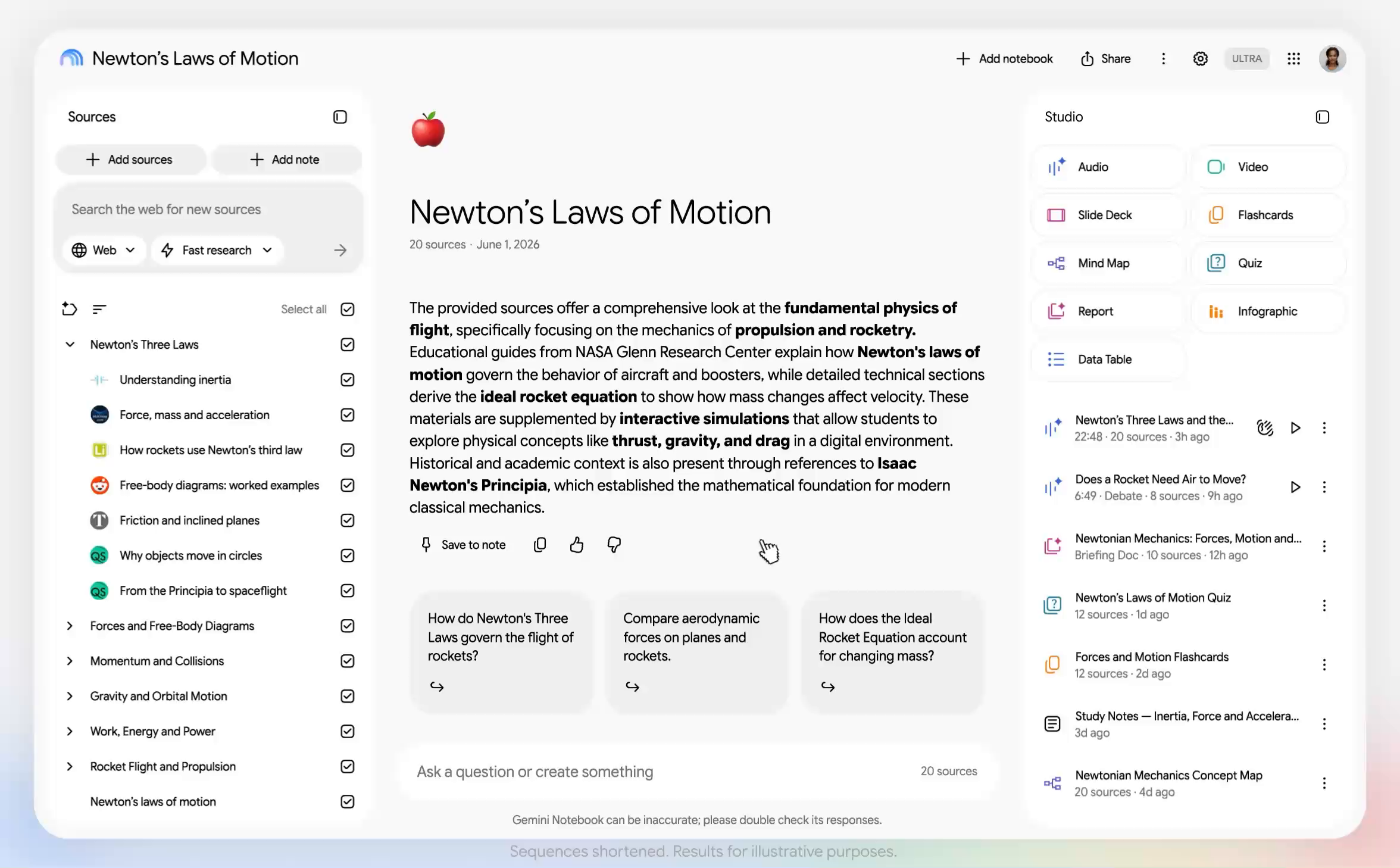
Source: Google, official app demonstration.
Suppose you are comparing three proposals
Imagine choosing a supplier to redesign your website. You have three proposals and your own list of requirements. Each proposal is written a little differently. One includes maintenance, another mentions it separately, and the third leaves the scope of the price unclear.
This would be a sensible way to try Notebook: add the proposals and requirements to one notebook, then ask:
Compare the proposals by scope, deadline, maintenance and additional costs. Cite a source for each finding. If a detail is missing, write “not specified”.
The next question may be even more useful:
What questions should I send each supplier to make the proposals genuinely comparable?
This is an illustrative use case, not a result from our own test. The aim is not for AI to choose the supplier for you. It is to get an overview and a list of ambiguities to resolve. You should still check amounts, deadlines and obligations against the originals.
The same approach can be applied to public tender documents, a device manual or exam material. Define the topic and sources first, then the questions.
The same material can become more than a summary
In the part of the app called Studio, you can turn sources into a report, mind map, flashcards, quiz, audio or video overview, and other formats.[2]
Each serves a slightly different purpose:
- A report is useful when you need an organised overview before a meeting.
- A mind map helps you explore how topics connect.
- A quiz or flashcards can help you check your understanding.
- An audio overview offers another way to become familiar with material when you prefer listening to reading.
You do not need to generate everything. If you need five questions for a meeting, an extra slide deck and video probably will not help. Choose the format that fits your next step.
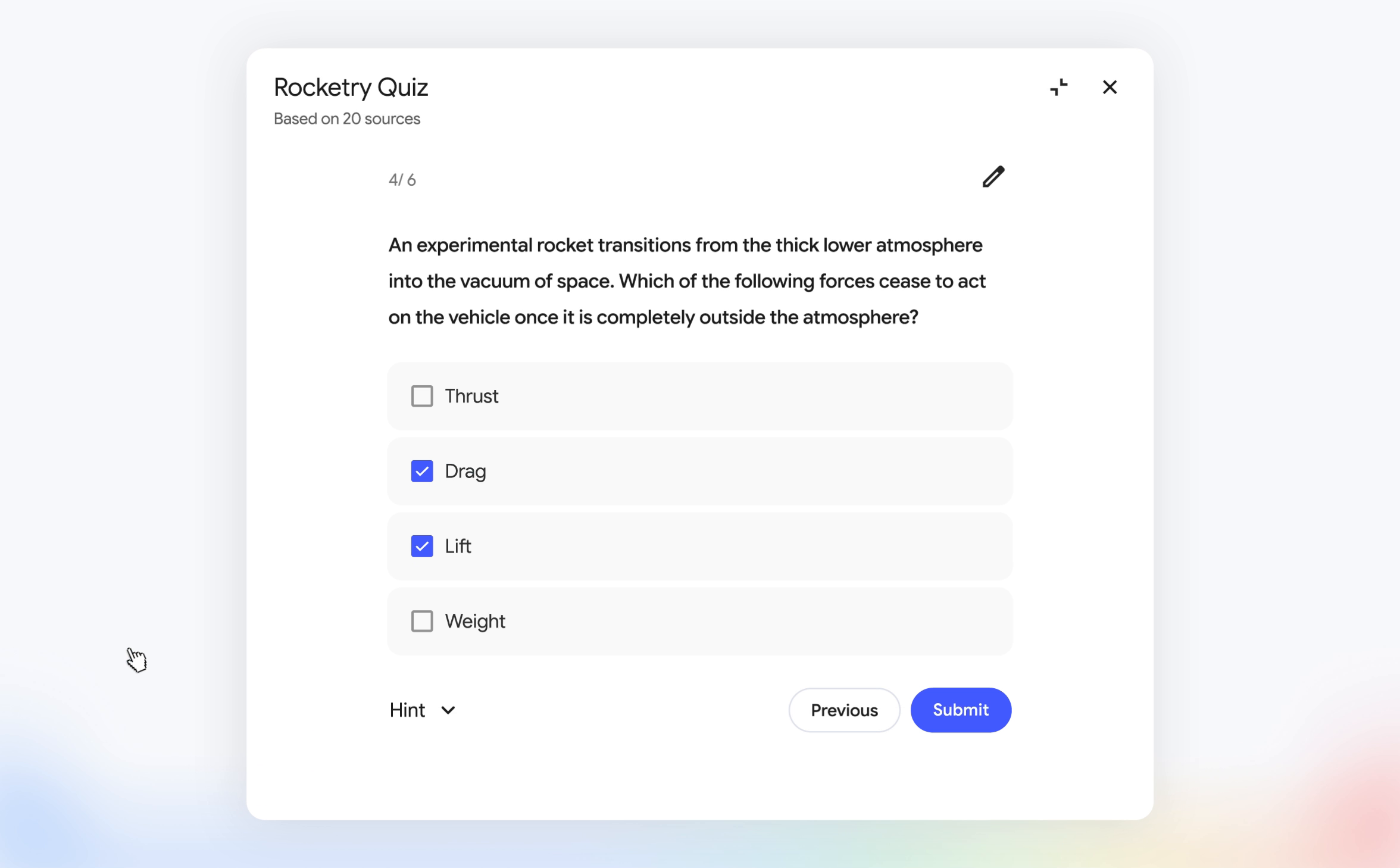
Source: Google, official app demonstration.
What does the September update bring?
On September 15, Google announced voice conversations with notebooks, an audio recorder in the mobile app and interactive learning overviews that combine summaries with content such as quizzes and flashcards.[5]
The most interesting shift is from a one-off summary to a conversation. Instead of reading an explanation and getting stuck on an unclear point, you can ask a follow-up question aloud or interrupt the explanation and request a different approach.[4]
However, not all new features are available to everyone yet. According to the currently published instructions, real-time voice conversation in the mobile app is limited to Google AI Ultra subscribers aged 18 or older. Interactive learning overviews and new quiz formats are rolling out gradually. For the new recorder, Google specifies English as the required output language setting at launch.[4][5]
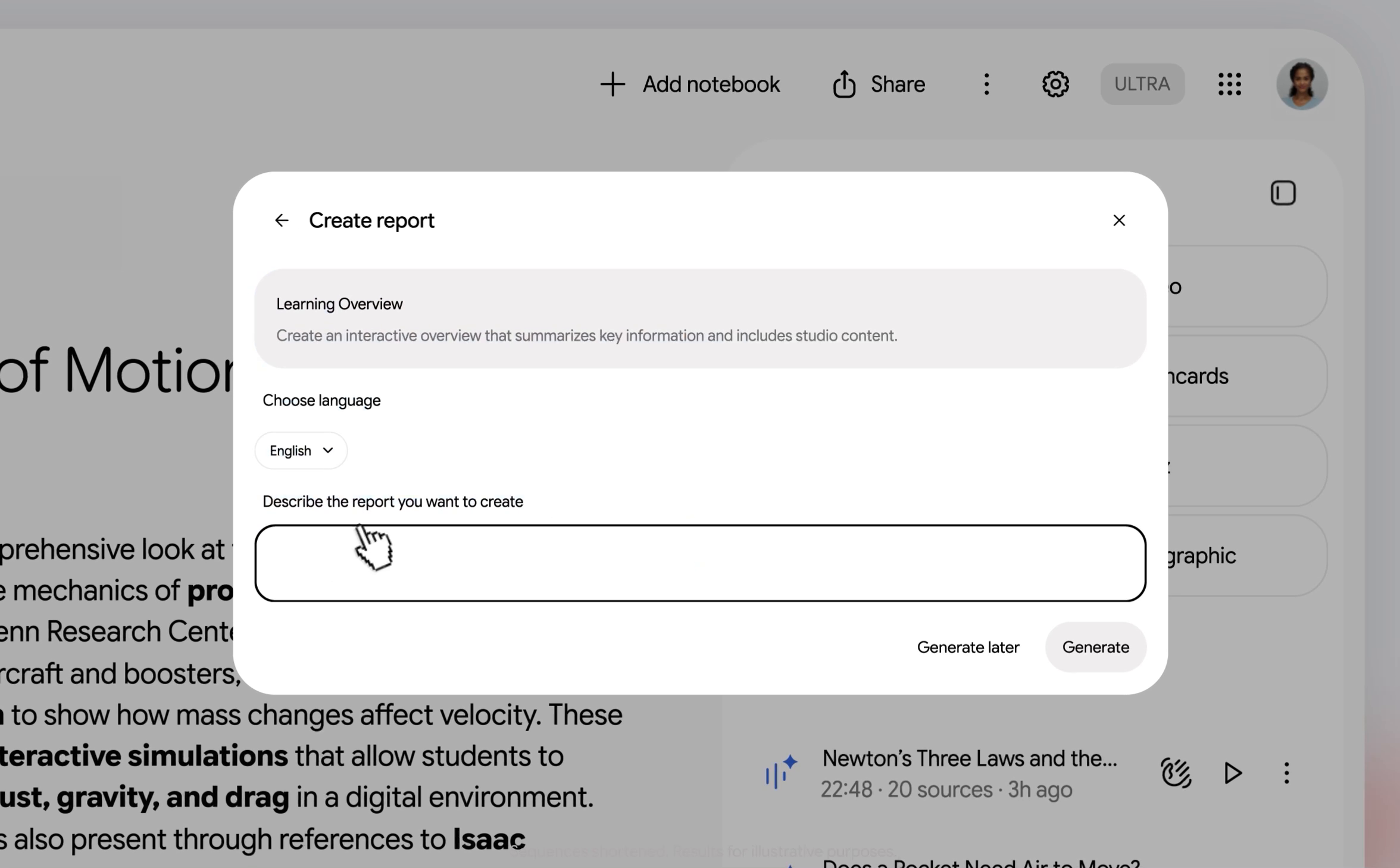
Source: Google, official app demonstration.
A useful assistant, not the final authority
A citation makes checking easier. It does not guarantee that an answer is correct. Google also warns that the tool can make mistakes and that results should be checked.[4]
The document you added may itself be wrong. If the sources are outdated or one-sided, a polished summary does not fix that.
For your first attempt, choose public or non-sensitive material. Do not upload confidential proposals, personal data or internal documents without appropriate permission and checking the applicable usage rules. Respect participants' privacy when recording conversations.
How to start without much preparation
Open Gemini Notebook, create a notebook and add two or three documents about one topic. The basic workflow is straightforward: add sources and start a conversation.[2]
Try three questions:
What do I need to understand from this material? Explain without jargon.
Where do the sources complement each other, and where do they contradict each other? Cite specific passages.
What is missing from the material that I would need to make a decision?
Then open the citation for one important claim and check the original. You will soon see whether this way of working suits you.
The best reason to use Notebook is not to get even more content. It is to find your way more easily through the content you already have. A good result is not necessarily a long summary. It can be one useful question you had not noticed before.